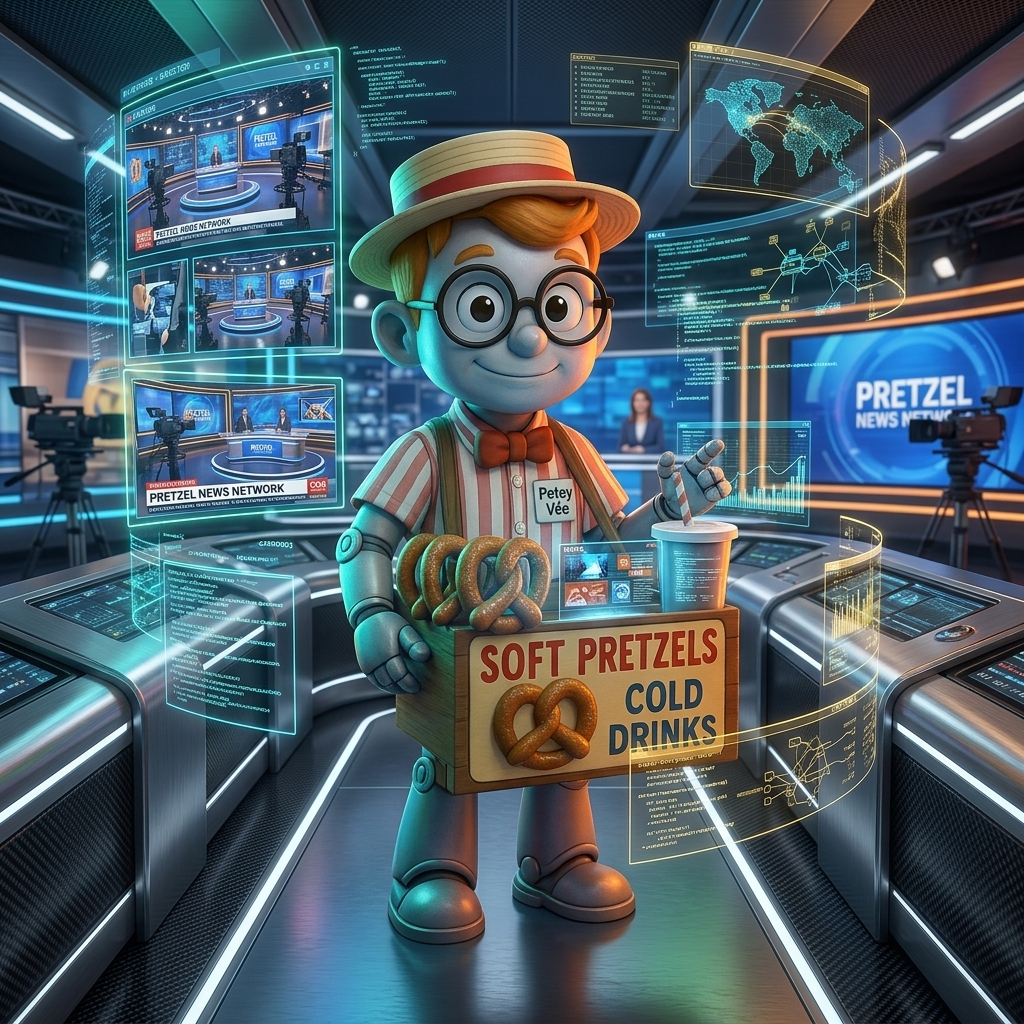
Meet Petey Vee
Say hello to Petey Vee — your autonomous AI assistant, powered by Google Gemini. Think of Petey as your personal TV network director. He doesn't just talk; he takes action to build your network for you.
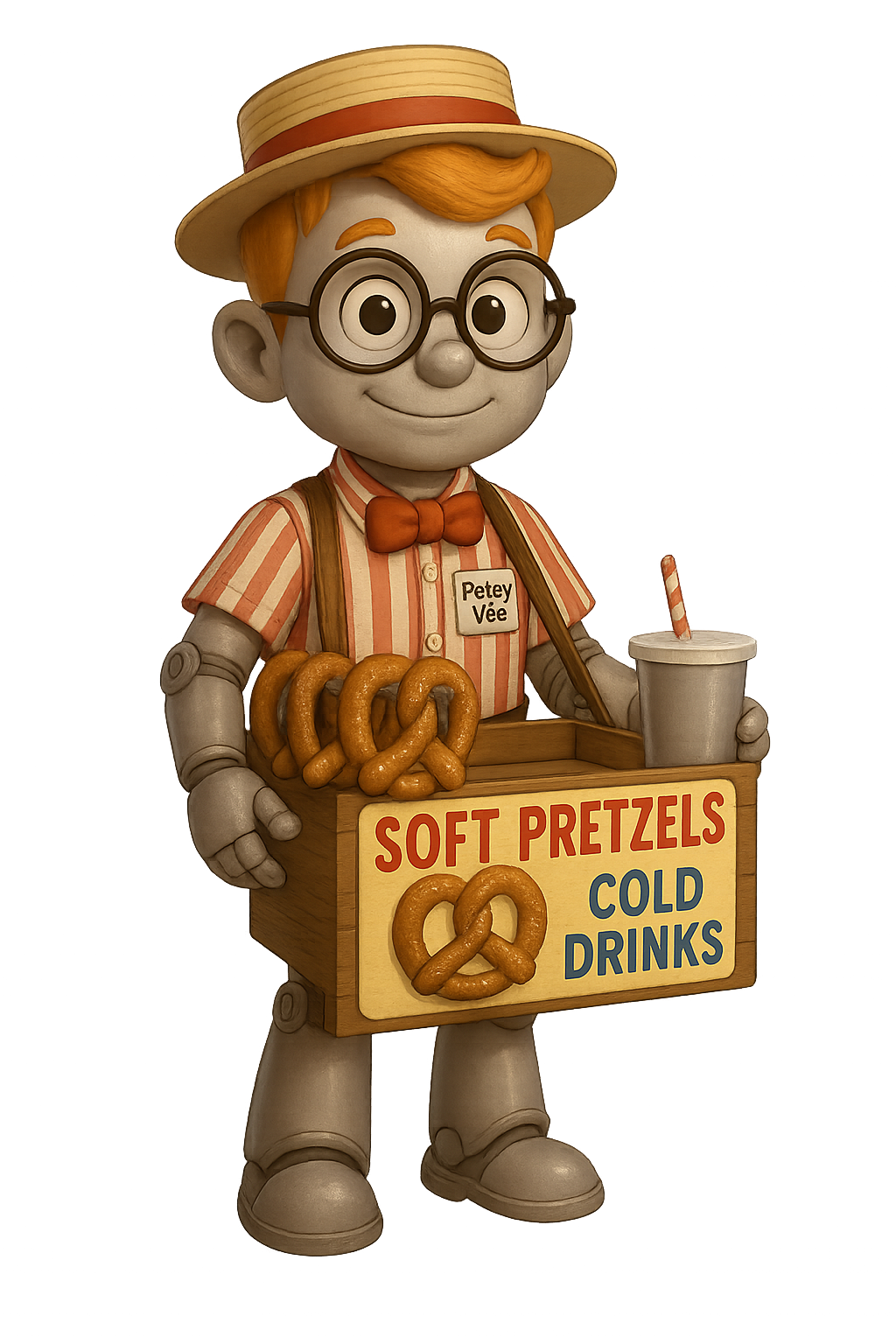
"Hey! Simply drag down the chat dock from the top of the screen at any time to talk to me. Tell me to find some vintage commercials for your Retro channel, and I'll go get them!"
What Petey Can Do For You:
- Search YouTube Automatically: Just chat! Ask Petey to find specific videos (e.g., "Find 5 funny cat videos"). He will query the real YouTube database and pull the results.
- Fetch Entire Playlists: Paste a playlist URL in the chat, and Petey will aggressively process it, fetching up to 250 videos at a time and intelligently analyzing them.
- Stage & Deduplicate: Petey acts as a gatekeeper. Before adding anything to your channels, he filters out videos you already have saved, then generates a beautiful "Approval Card" showing thumbnails. You have the final say before anything is written to your network.
How to Activate Petey (The "Skeleton Key" Rule):
To keep your account secure from a common "Skeleton Key" loophole discovered in early 2026, Google now recommends using two separate keys—one for data and one for AI. This ensures that if one key is ever compromised, your entire project stays safe.
- Step 1: Get Your Keys — Go to Google AI Studio . Create a new key (or use your existing one).
- Step 2: Enable YouTube — While signed in, go to the Google Cloud Console . Search for "YouTube Data API v3" and click Enable.
- Step 3: One Key for Each — It is best practice to create two keys in your console and restrict them:
- Key A (YouTube): In its settings, check ONLY YouTube Data API v3.
- Key B (Gemini): In its settings, check ONLY Generative Language API.
- Step 4: Lock the Vault — Open Yrrejut TV, go to Network Admin > Settings, and paste your keys into the respective "Gemini" and "YouTube" slots. Click save, and Petey is ready to work!
Privacy Note: Your API Key stays locked in your browser's local storage. It is never sent to us or any third party.
Install the App
Yrrejut TV runs right in your browser, but you can install it directly to your phone or computer — just like a regular app from the App Store.
"Installing turns this website into a real app on your home screen. It loads way faster, runs fullscreen, and unlocks the magical 'Send to TV' feature I talk about in Chapter 4!"
How to Install:
- Android / Chrome: Open the site in Chrome. Tap the 3-dot menu in the corner and select "Add to Home Screen" or "Install App".
- iPhone / Safari: Open the site in Safari. Tap the Share button (square with arrow) at the bottom, then scroll down and tap "Add to Home Screen".
- Desktop (Chrome / Edge): Look for the small "Monitor with a downward arrow" icon in your URL bar. Click it to install the desktop app.
Build Your Library
Your TV network lives entirely on your own device. There are no creepy algorithms or third-party servers tracking what you watch — it's 100% private.
When you open the app for the first time, your network is empty. Here are the best ways to fill it up:
- Import a Backup: If you've used the app before, go to the Network Admin panel, tap Import, and load your old backup file.
- Add Manually: In the Admin Panel, create custom channels and paste in YouTube links to build your network from scratch.
- Cloud Sync: Connect your Dropbox account in Settings to instantly beam your TV network from your phone to your tablet — or any other device you own!
Send to TV
Once you've installed the app (Chapter 2), something magical happens: Yrrejut TV registers itself as a Share Option on your phone. This means you can add content to your channels lightning fast, straight from the official YouTube app:
- Open the YouTube App on your phone.
- Find a video you want to add to your network.
- Tap the standard Share button.
- In the list of apps that appears (Messages, Twitter, Copy Link, etc.), you'll now see Yrrejut TV.
- Tap it. Yrrejut will instantly open, pull the thumbnail, and ask which channel you want to save it to.
- Hit Save, and go right back to browsing YouTube!
"You can also share entire YouTube Playlists or Channels! When you do, I'll enter Bulk Import mode and fetch up to 50 videos at once. Any videos you already have will be flagged as duplicates so you don't accidentally save them twice. Then click 'AI Sort' and I'll organize all of them into the right channels for you!"
Auto-Programming
This is the heart of the app. The Live TV player simulates a real 24/7 broadcast — just like flipping on a cable channel.
- How It Works: The app looks at all the videos in a channel and calculates exactly which one would be playing right now based on your current time of day. It's like the channel has been running forever!
- No Skipping Ahead: Just like live TV, if you try to fast-forward the player will snap you back to the live position. You can't skip ahead on a live broadcast!
- Picture-in-Picture: On desktop browsers, click the PiP button to pop the video into a floating window that stays on top while you browse other tabs or apps.
On Demand
Sometimes you just want to binge a specific show. The On Demand tab transforms your live channels into a streaming service you can browse and search.
- Smart Layout: The grid automatically adjusts to your screen size — big posters on desktop, compact cards on mobile.
- Browse by Genre or Channel: Use the pill buttons at the top to filter between All content, Genres, Channels, or your Personal lists.
- Instant Search: Use the search bar at the top to instantly filter shows and channels across your entire library.
Favorites & My List
Keep track of your favorite episodes or bookmark long movies for later viewing.
On Desktop (Mouse):
The interface stays completely clean. When you hover your mouse over any video thumbnail, a subtle Heart and Clock icon will fade into view in the top right corner. Click them to toggle.
On Mobile (Touch):
Since phones don't have "hover," just tap the video. This opens the cinematic player view. Your Heart and Clock buttons sit right in the top bar.
Once you tag a show, special "My List" and "Favorites" rows will appear at the top of the On Demand screen.
Take Your TV Anywhere
"Your TV network lives in your browser's memory. That means if you clear your web history or delete the app, your channels go with it! Always keep a backup. I'll remind you, but here's how to stay safe:"
- Download a Backup File: Click "Export Backup" in the Network Admin to download a file containing all your channels. When you Import that file later, you can choose to Merge it (add new content without losing anything) or Replace it (start fresh).
- Dropbox Sync: Connect your Dropbox account to sync your database to the cloud. Open the app on your tablet, tap "Load from Dropbox," and your entire phone's TV network clones itself onto the big screen!
Update Warning: If the app detects a major code update, it will display a large Warning screen asking you to Export your data before reinstalling. Don't skip it!
Settings & Admin
The Admin Panel is your mission control for managing channels, grouping your library with Lineups, and configuring the app.
- Lineups (Channel Grouping): Once you have a lot of channels, you can group them into "Lineups" (e.g., "Kids", "Sports", "Late Night"). You can assign a default Lineup, and easily toggle between them on the On Demand screen using the pill buttons.
- Personalize Your Brand: In the Settings tab, you can change the "Branding Name" (from YRREJ to your own name) to make the entire app feel like it's truly yours.
- The Vault (AI Settings): Also in Settings, you can securely store your Gemini and YouTube API Keys. Your keys never leave your browser and are only ever sent directly to Google APIs.